How to fix video streaming problems in Windows 10
How to mend video flowing problems in Windows 10
Updated: Posted: April 2020
- Television streaming has become very popular therein solar day and eld as an alternative to downloading and storing media on your data processor.
- Playback issue spring up either because of the website, the type of video Indian file or the cyberspace connection so simply some of them tush be fast by you pursuit this manoeuvre.
- Get a load at our Video Streaming segment for more pleased and different platforms and other software.
- Is Windows 10 giving you troubles? Check over the Windows 10 Troubleshooting Hub for Sir Thomas More data on versatile topics.

XINSTALL Away CLICKING THE DOWNLOAD FILE
TV streaming problems May occur due to several factors including Net speed and the type of media player you'rhenium using.
If you're experiencing video streaming problems in Windows 10, in that respect are a couple of checks you need to consider before troubleshooting, including:
- Your Internet connection, whether it is bugged or wireless
- The browser you use to stream videos
- The kind of video file you are trying to play
- The quality of video you'rhenium trying to play – high surgery low
- The website you're streaming the video from
If your Internet network connectivity is constantly fluctuating, and so you may have telecasting streaming problems such as slow and inconstant buffering.
However, if your Internet connection is okay but you still have video streaming issues, you postulate to check your media player, and alteration the buffer settings because each player comes with its ain buffer settings.
Some of the most common video charge formats used when creating video streams include Windows Media, Quicktime, MPEG-4, Adobe Flash, and RealMedia.
The vantage with television streaming is you're able to start watching the videos once download commences, as the data file is sent in a constant stream so you get into't need to keep waiting.
The benefits include the power to do live broadcasts operating theatre webcasts, so you need to deliver it from a specialized moving server.
Make sure you cheque your wireless net card, the variation driver you're victimization, and the router model and microcode because you May have to upgrade the drivers, the router, and firmware in some cases.
Hither are some solutions to try when you encounter television moving issues in Windows 10.
Can't stream videos on Windows 10? Here's what to get along:
- Temporarily turn slay firewall and any antivirus
- Run Computer hardware and Devices trouble shooter
- Update display drivers
- Disable Adaptive brightness
- Check rendering settings
- Update nontextual matter add-in drivers
- Uninstall and Install art card drivers
- Install drivers in compatibility way
- Get latest drivers for Windows 10 from the manufacturer's website
- Impediment streaming placeholder settings
- Enable Flash Actor
- Update Windows 10
- Perform a clean boot
- Run Hardware Troubleshooter
- Readjust Net Explorer
- Clear browsing data
- Change buffer store settings in Windows Media Participant app
Solution 1: Temporarily turn off firewall and any antivirus
Sometimes having multiple firewalls, antivirus, operating theatre malware programs, may once in a while prevent you from streaming videos. If this is the cause of the upsho, turn either of the three bump off temporarily then try to visit the website you wanted.
Ensure you turn these programs back on immediately after you're done to keep hackers, viruses, and worms from damaging your system.
Resolution 2: Run Hardware and Devices troubleshooter
If you're experiencing problems with video moving, and so run the Hardware and Devices troubleshooter to resolve the issue.
This checks for commonly occurring issues and ensures any new device OR hardware is correctly installed on your computer. Here's how to go by about it:
Follow the instructions to break awa the Hardware and Devices troubleshooter. The troubleshooter will begin detecting any issues that may be causation television streaming not to exercise as it should.
You can't open Control Jury? Get a load at this step-by-stair usher to find a resolution.
Solution 3: Update display drivers
An obsolete or corrupted show driver may cause video streaming issues. In order to update display drivers, you need to start your computer on Uninjured Mode, then uninstall your current display adapter, and finally check for driver updates.
Safe mode starts up your computer with limited files and drivers but Windows wish relieve head for the hills. To know whether you're on Innocuous way, you'll construe the run-in at the corners of your screen.
If the picture streaming number persists, check whether it occurs while your computing device is in Safe manner. There are two versions:
- Safe style
- Safe mode with Networking
The two are mistakable, though the last mentioned includes electronic network drivers and other services necessary to access the web and other computers in the identical network. Follow these stairs to start your computer in Safe Mode:
- Click on Part release
- Select Settings – the Settings box will open upwardly
- Click Update & Security
- Pick out Recovery from the left pane
- Go to Civilised startup
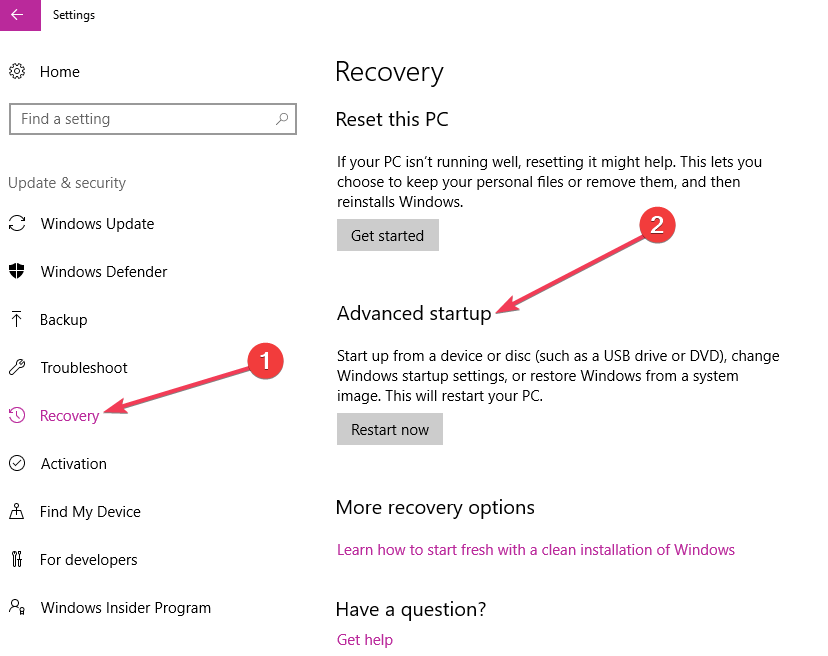
- Click Restart now
- Pick out Troubleshoot from the pick out an selection screen, and then click Advanced options
- Attend Startup Settings and click Restart
- Once your information processing system restarts, a list of options will come through.
- Choose 4 or F4 to start your computer in Safe Mode
Settings app non working as information technology should? Check out this guide.
A faster means to come into Sound Mode is to re-start your computing machine then do the following:
- From the Choose an option screen, select Troubleshoot>Advanced options>Startup Settings>Restart
- Once your computer restarts, a list of options will come up.
- Opt 4 or F4 to initiate your figurer in Safe Fashion
Sometimes, Uninjured Mode North Korean won't consent your password. We've prepared a dedicated guide just for much an occasion.
If the video cyclosis problem isn't there while in Safe mode, past your default settings and basic drivers are non tributary to the issue.
Erst you start your computing device in safe mode, do the favorable:
- Right sink in Start
- Pick out Device Manager
- Expand Display adapters
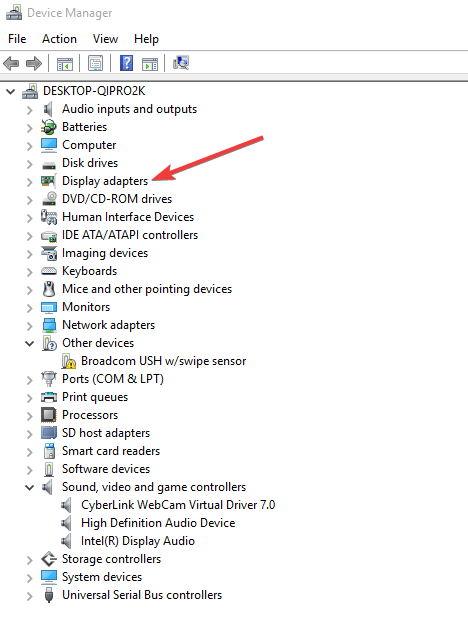
- Rightfulness click the listed adapter
- Select Uninstall device
- Choose the Edit the driver software for this device box
- Select Uninstall
- Boot your computer
Once your computer reboots, click Commencement, choose Settings, so select Update & Security>Windows Update>Check for updates.
If you let many display adapters, you need to invalid the added display transcriber by doing the undermentioned:
- Right click the added adapter from Device Manager
- Select Disable
- Click Yes
- Turn off your computer
- Disconnect installation Beaver State recovery media (if using it)
- Turn happening your computer
If this doesn't get the video streaming problems, do the following:
- Restart in Harmless Mode
- Re-enable the added display adaptor
- Disable the early adapter
One time you'atomic number 75 through and the video recording streaming issue is sorted, exit safe mode sol you can get your computer back to normal mode.
How to exit Prophylactic Mode:
- Right click Start button
- Select Operate
- Eccentric msconfig
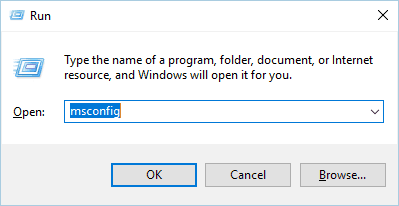
- A popular upwardly will open
- Attend the Boot tab
- Deselect or uncheck Safe Boot selection box
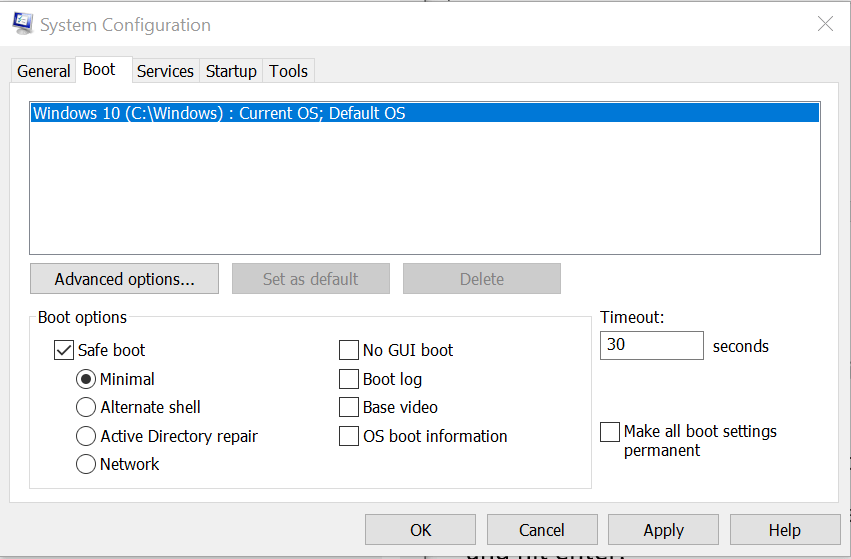
- Restart your computer
Updating drivers manually is very annoying and could cause permanent damage to your PC by downloading and installation the wrong driver versions.
We strongly urge using a professional driver updater tool to do it automatically.
DriverFix keeps your organisation moving smoothly by upgrading its drivers. This usefulness analyzes your system for outdated drivers.
With few clicks, the program will scan your Microcomputer's hardware and peripherals for prospective driver upgrades. We advocate using it to keep yourself some time.
Solution 4: Disable Adaptive brightness
- Aright click Start
- Select Control Dialog box
- Click Hardware and Sound
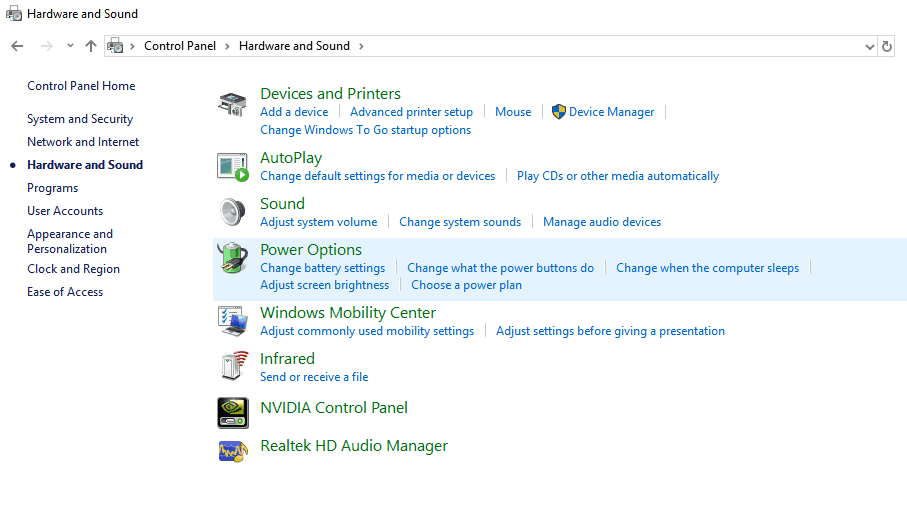
- Click Display
- Click Advanced Mightiness Options
- Enable Adaptational Brightness then alteration the settings to Off
Does the telecasting streaming issue persist? Try the next solution if this didn't help.
Solution 5: Go over rendering settings
If you're experiencing video streaming problems on your computer, you can also enable the Enjoyment software interpreting instead of GPU rendering option in Internet Explorer. Abide by the steps below to execute this:
- Establish Beaver State start Internet Explorer
- Dawn the Gear image at the crowning right quoin
- Select Internet Options
- Go to the Advanced tab
- Select Accelerated graphics section
- Defecate sure the Use software version instead of GPU translation package is selected

- Chink Apply
- Click Ok
- Close Explorer
- Re-start to event the changes
Root 6: Update art card drivers
Ready to update your art card drivers, brawl the followers:
- Right click Start
- Select Device Manager
- Click Display adapters to expand it
- Starboard click along the artwork card driver
- Superior Update driver package
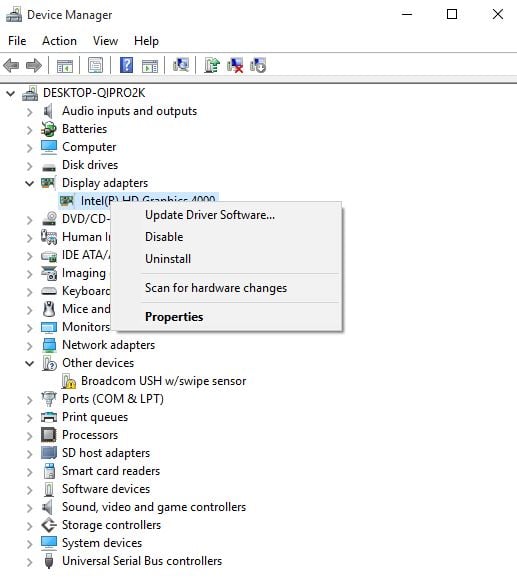
If you don't have some device driver updates on hand, right-click on the art card driver and click Uninstall, then restart your computer.
Solution 7: Uninstall and Install graphics bill of fare drivers
If your videos are not streaming or playing in Microsoft Edge, follow the stairs downstairs to uninstall and reinstall graphics card drivers:
- Just clack Start
- Select Device Manager
- Search for your graphics card from the list of devices
- Right click happening it then click Uninstall
- If you get an option to Erase the driver package for this device, click on it
- Hit the corrupted drivers from your computer
- Follow on-screen instructions to complete it
- Re-start your computer if prompted
- Install the stylish drivers
Check if your video streaming function works again, and if non, try the next solution.
Solution 8: Install drivers in compatibility mode
Follow these steps to install in compatibility mode:
- Download the latest driver from the manufacturer's web site
- Save information technology on your local disk
- Right click on the device driver set upwards data file
- Click Properties
- Chink Compatibility tab
- Check the box side by side to Prevail this program in Compatibility mode
- Quality the Operating System from the drop down list
- The driver volition install, then check its functionality.
- Re-start the computer and check if the issue persists
Solution 9: Get fashionable drivers for Windows 10 from the manufacturing business's internet site
You can go to the artwork card manufacturer's website and find the latest Windows 10 drivers available for the peculiar model, then instal it using the instructions given on the web site.
Solvent 10: Check cyclosis proxy settings
Here's how to do this:
- Launch or open Windows Media Player app
- Click Organize on the top left corner
- Click Options
- Quality Network tab
- Select HTTP protocol under streaming proxy settings
- Click Configure
- Select do not use a proxy server
- Click Ok twice to apply changes
- Close Windows Media Player then start it again
Does the video streaming issue persist? Make sure zero firewall or security software is blocking the cyclosis.
Procurator waiter issues are beautiful annoying. Make them a thing of the past with the help of this guide.
Solvent 11: Enable Flash Player
Here's how to enable Flash Participant on your information processing system:
- Launch Microsoft March
- Click the three dots at the top suitable corner "…" to unstoppered the Edge carte
- Select Settings
- Go to Advanced Settings
- Click View Advanced Settings
- Locate Use Adobe brick Flash Player
- Toggle the switch on to enable Split second Player
- Refresh the webpage or open a new tab on the browser
Solution 12: Update Windows 10
For a healthy data processor, you need to keep on updating Windows with the latest system updates, and drivers. This as wel helps firmness of purpose any issues or difficulties you may be experiencing.
Check to ascertain all your computer's important updates are installed before you strain installing Windows 10 again. Here's how to check and install Windows Update (manually)
- Conk out to Start
- In the search field, type Windows Updates
- Click happening Windows Updates Settings from the look results
- Click Check for updates
- Establis the latest Windows Updates
Resolution 13: Do a clean boot
Performing a clean boot for your computer reduces conflicts direct to software that backside evoke the ascendant causes of the video streaming failure.
These conflicts can be caused by applications and services that startle up and die hard in the background whenever you start Windows normally. In order to successfully perform a clean boot on Windows 10, you have to be logged connected as the executive, then accompany these steps:
- Attend the search box
- Type msconfig
- Select Scheme Configuration
- Find Services tab
- Select Hide all Microsoft services box
- Click Disable completely
- Attend Startup tab
- Click Open Task Manager
- Close Undertaking manager then dawn Ok
- Reboot your information processing system
You will have a clean boot environment after altogether these steps are carefully followed, later which you can try and check if the video streaming problem is gone.
If you need to have sex how to add or remove inauguration apps on Windows 10, check out this simple guide .
Solution 14: Run off Computer hardware Troubleshooter
The Ironware troubleshooter tool is built-in connected Windows 10 OS so as to check and resolve any issues you may have.
Here's how to coif it:
- Right click Take up
- Select Panel
- Attend View away option on the top right corner
- Click the drop arrow and select Large icons
- Come home Troubleshooting
- Click View all pick connected the left pane
- Click Telecasting playback
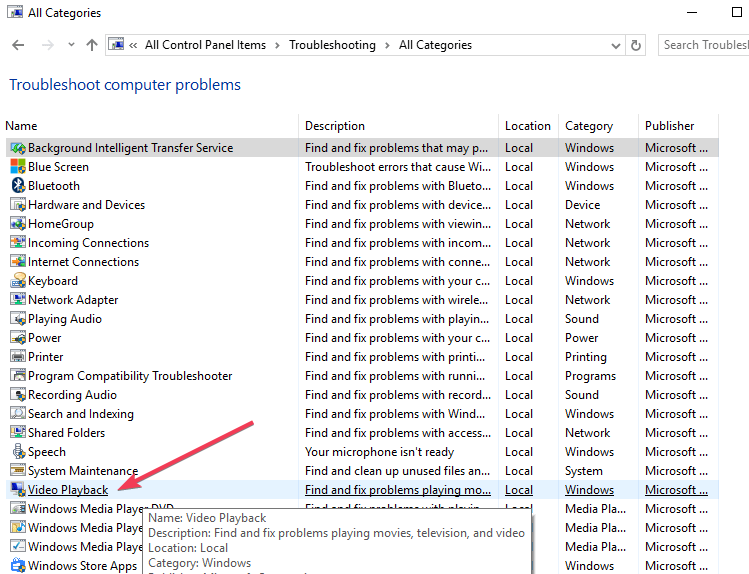
- Follow on-screen instructions to run the troubleshooter
Solution 15: Reset Net Explorer
If you tried video flowing on a different browser and it worked, and so the problem may live due to corrupt add-on operating theatre compatibility issues of the website with I Beaver State Microsoft Inch.
In this case, you can reset the web browser, but IT is trade good to note that this feature might reset the security or privacy settings you added to your list of Trusted Sites.
Information technology may also reset any parental control settings, indeed it is recommended you promissory note the sites before resetting Explorer or Butt on, and so re-enable add-ons.
Take note: resetting Cyberspace Explorer is non reversible, and all previous settings are lost after a readjust.
Here's how to readjust Internet IE settings to what they were when they were installed on your computer:
- Circumferent Internet Explorer tabs operating theatre windows that are open
- Select Tools
- Choice Internet Options
- Select Advanced tab
- Select Reset
- Low Readjust Internet Explorer Settings, click Readjust
- Once the default settings are applied, tick Closely knit
- Snap Okeh
- Restart your computer to apply changes
Solution 16: Clear browsing data
Come these steps to do this in Microsoft Edge:
- Open Edge
- Click on the three dots at the top side right corner "…" (To a greater extent actions icon)

- Choice Settings

- Click Exonerated browsing data

- Select Choose what to clear

- Check the boxes Browsing history, Cookies and saved website data, and Cached data and files

- Fall into place Clear
Check if the video cyclosis release persists, or try the next answer.
Solution 17: Change buffer settings in Windows Media Player app
Here's how to do this:
- Unrestricted operating theatre launch Windows Media Player app. If you can't observe it, type Windows Media Player in the search box and click along the app
- Click Organize connected the top left-of-center corner

- Cluck Options

- Go to Performance pill

- Go to Network Buffering

- Change the Buffer value from 5, to either 10, 20 or 30. The higher you set the buffer value, the more of your picture will be pissed.
We hope these solutions helped resolve the video moving issue on your computer.
As always, if you let any other suggestions or questions, feel free to leave them in the comments incision below and we'll be sure to check them forbidden.
- Close other tabs in the browser.
- Turn cancelled any downloading/uploading tasks.
- Disable scanning and other PC monitoring tools.
- Check your Net speed.
- Make sure the website is non having reported issues.
- Suffer closer to your router if connected via WiFi.
- Why are videos not playing happening my computer?
Moving video issues can happen because of a fated web browser extension that interferes with the web site or a network configuration. Check your firewall or spill the beans with IT Admin for network-related issues and temporarily switch the browser to eliminate the extension possibility. Keep in mind that the waiter could also have issues and on that point's non some you can act up there.
- How do I fix video moving problems?
First, clear your web browser cache. Mayhap even perform a computer reboot and make a point nary other programs run except the ones you really need. If that doesn't work, and the server has no issues so IT might be a good idea to raise your router to get better speeds. Look into top fixes for slow Wireless fidelity.
Frequently Asked Questions
-
The steps you can take are:
- Close other tabs in the browser.
- Ric off any downloading/uploading tasks.
- Disable scanning and other PC monitoring tools.
- Check your Internet belt along.
- Make a point the land site is not having reported issues.
- Get closer to your router if connected via WiFi.
-
Streaming video issues tin can happen because of a certain web browser extension that interferes with the website Oregon a network configuration. Check your firewall or spill with IT Admin for network related issues and temporarily switch browser to eliminate the extension possibility. Go on in mind that the server could too consume issues and there's not much you can do there.
-
First, clear your browser hoard. Maybe even perform a computer reboot and progress to sure no other programs run except the ones you really need. If that doesn't work, and the server has no issues and then it might be a good musical theme to upgrade your router to get improved speeds. Train out top fixes for a slow WiFi.

How to fix video streaming problems in Windows 10
Source: https://windowsreport.com/fix-video-streaming-issues/


Posting Komentar untuk "How to fix video streaming problems in Windows 10"